

 Kamil "Ravik" Borkowski
You buy a game, install it in the evening, launch it and after a few dozen minutes start regretting the purchase. Maybe it runs worse than expected, the gameplay simply is not for you, the controls are frustrating or it turns out you bought the wrong version.
On Steam, that does not automatically mean your money is gone. Valve has a fairly straightforward refund system, and in most standard cases the entire request can be submitted in just a few minutes.
The most important rule is worth remembering straight away: as a standard rule, you can refund a game if no more than 14 days have passed since the purchase and your playtime is under 2 hours.
That does not mean all options disappear as soon as the counter shows 2 hours and 1 minute or 15 days have passed. You can still submit a request to Steam Support, but the case no longer falls within the standard conditions and may be reviewed individually.
In this guide, we explain how to refund a game on Steam, what to do after exceeding 2 hours, what happens after 14 days, where the money goes and whether the whole process can be completed on a phone.
When can you refund a game on Steam?
For a regular game purchased directly from the Steam Store, the rule is simple: ideally, you should stay within both limits at the same time.
The first is 14 days from the purchase date. The second is less than 2 hours of playtime.
In practice, it looks like this:
| Situation | How does the refund work? |
|---|---|
| No more than 14 days have passed and you have under 2 hours of playtime | You meet the standard refund conditions |
| You have more than 2 hours of playtime | You can still submit a request, but the case may be reviewed individually |
| More than 14 days have passed since purchase | You can still ask for a refund, but it is no longer a standard case |
| You have exceeded both limits | You can still submit a request, but the decision depends on Steam's review |
| The game was purchased outside Steam | You usually need to arrange the refund with the seller you bought it from |
| You have a VAC ban in the game | A refund for that game is not available |
One more thing is worth emphasising: you do not need to have a serious technical problem to use the standard refund system. You may simply not like the game. You may also have bought the wrong title, chosen the wrong edition or realised after a short time that it is not what you were looking for.
How to refund a game on Steam step by step?
You do not need to write a separate email to Valve or search for a hidden form. Everything is handled through Steam Support.
How do you submit a refund request?
- Sign in to Steam Support.
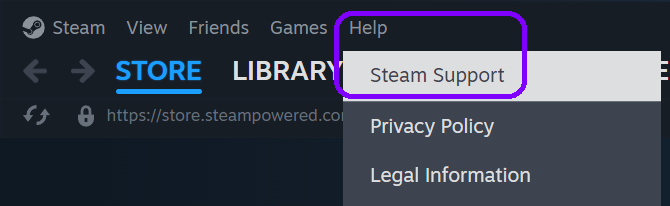
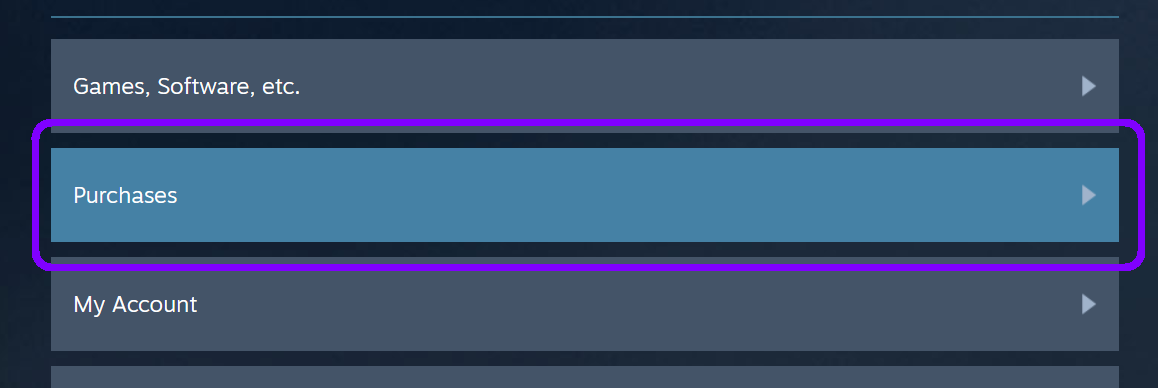
- Go to the section related to purchases.
- Find the game you want to refund.
- Select the relevant transaction.
- Go to the refund-related option.
- Choose the reason for your request.
- Select the available refund method.
- Submit the request.
- Check the email address connected to your Steam account.
If the purchase is recent and your playtime is under 2 hours, that is basically the end of the process. The key is to select the correct transaction and refund method.
Steam may offer a refund to your Steam Wallet or to the original payment method if that payment method supports refunds.
How to refund a game on Steam after 2 hours?
This is probably the most common situation that raises questions. You see 2 hours and a few minutes on the counter and wonder: is it already too late?
Not necessarily.
Exceeding 2 hours mainly means that you no longer meet the standard refund conditions. You can still submit a request.
In that situation, it is worth briefly explaining why you exceeded the limit.
For example, the game may have failed to launch for a long time, meaning part of your recorded playtime was spent testing settings, restarting the game and trying to solve the issue. Or perhaps a serious problem only appeared after a longer prologue.
Those are completely different situations from playing for many hours and then simply changing your mind.
There is no need to write an essay. A short explanation of what happened and why you are asking for an individual review is enough.
Can you refund a game after 3, 5 or 10 hours?
You can submit a request, but the further you go beyond the 2-hour limit, the less it resembles a standard refund.
The most important thing is to distinguish between two things: the ability to submit a request and meeting the standard refund criteria.
Steam Support allows you to explain your situation even when the counter shows more than 2 hours. That does not mean the decision will automatically be positive.
If you have a specific technical problem or an unusual situation, it is worth describing it. If, on the other hand, you have played for many hours and simply stopped enjoying the game, that is much further from a standard refund case.
How to refund a game on Steam after 14 days?
The rule is very similar to exceeding 2 hours.
If more than 14 days have passed since purchase, you can still go to Steam Support and submit a request. However, you are no longer within the standard refund period.
The process itself looks almost the same:
- Go to Steam Support.
- Open the purchase history.
- Find the game.
- Select the appropriate transaction option.
- Describe the situation.
- Submit the request.
If you have a specific reason, state it clearly. For example, the game may have stopped working after an update or a hardware change may have caused a problem that did not exist before.
A short, factual explanation is much more useful than simply writing "I want a refund after 14 days."
What if more than 14 days have passed and I have more than 2 hours?
In that case, both standard limits have been exceeded. You can still submit a request, but you should not treat it as a normal standard refund.
The best approach is to describe the situation accurately.
If the game has a serious technical issue, stopped launching or another unusual situation occurred, explain this to support. There is no point pretending that you meet the standard criteria because the system can see both the purchase date and your playtime.
Steam can see your transaction history and time spent in the game, so clear and honest information matters most.
How to refund a game on Steam on a phone?
You do not need access to a computer. You can also submit the request from your phone.
The easiest way is through a browser and Steam Support.
How to refund a game on Steam on a phone step by step?
- Open a browser on your smartphone.
- Go to Steam Support.
- Sign in to your account.
- Open the purchases section.
- Find the game.
- Go to the refund option.
- Choose the reason.
- Select how you want to receive the funds.
- Submit the request.
The procedure is almost the same as on a computer. The screen is simply smaller.
So if you are looking for an answer to "how to refund a game on Steam on a phone", you do not need a separate app or a special form. You use the same Steam account and the same support system.
How do you check the status of a game refund request?
Track your request and messages from Steam Support
After sending your request, check its status in Steam Support and keep an eye on messages sent to the email address linked to your account. Submitting a request does not mean it has been accepted. You will find further information about the decision and the processing of the refund in the messages related to the specific purchase.
Can you refund a game bought on sale?
Yes. A discount does not itself block the possibility of a refund.
If you bought the game at a reduced price and still meet the standard conditions, you can go through the normal refund process.
An interesting situation occurs when you buy a game and a major discount starts the next day. Steam does not automatically treat refunding the original purchase and buying it again at the lower price as abuse, provided the original purchase qualifies for a refund.
There is no simple "refund me the price difference" button, however. The usual mechanism is to refund the earlier transaction and, if you wish, buy the game again.
Can you refund a game bought before release?
Yes, but you need to distinguish between a regular preorder and a situation where the game is already available in Early Access or Advance Access.
If you bought a game before release and cannot play it yet, you can request a refund before it launches. The standard 14-day period then begins from the release date.
If you already have early access and can actually play the game, the time spent in that version may count towards the playtime limit.
That matters because it is easy to assume that anything played before the official release "does not count". In practice, it depends on the type of access.
Can you refund DLC on Steam?
Yes, but DLC has slightly different rules from a full game.
The standard 14-day period matters, as does the amount of time the base game has been used after purchasing the DLC. It also matters whether the DLC has been consumed, transferred or permanently modified.
Some DLC may be excluded from refunds, especially when activation causes an irreversible change to the account or game.
That is why with DLC it is best to check the information for the specific product instead of assuming the rules are identical to those for a full game.
Can you refund an in-game purchase?
Steam applies separate rules to in-game purchases.
Some purchases made in Valve games may qualify for refunds within a shorter period, provided the item has not been used, modified or transferred.
In games from other developers, it depends on whether that developer supports the refund system.
This is another example of why a game, DLC, an in-game item and a Steam Wallet top-up are not treated in exactly the same way.
Can you refund money added to Steam Wallet?
Yes, if the funds were added directly through Steam and have not yet been used.
A specific time limit also applies here. If you added money to your Wallet by mistake and have not spent it, it is worth checking the refund option through Steam Support.
Steam Wallet cards purchased from external stores work differently. That transaction takes place outside Steam, so any refund depends on the retailer where you bought the card.
Can you refund a Steam gift?
Yes, gifts may also be eligible for refunds.
If the gift has not yet been redeemed by the recipient, the situation is simpler. If it has already been accepted and added to the library, the recipient may need to take part in starting the process.
If the refund is approved, the money goes back to the person who originally made the purchase, not to the gift recipient.
The standard limits relating to purchase date and playtime still matter.
Can you refund a Steam key bought on another website?
Not through Valve's refund system.
This is a very common misunderstanding. The game appears in your Steam library, so you may assume Valve is responsible for the entire transaction. In reality, the key was purchased elsewhere and Steam only activated the product on your account.
If you bought a key from an external store, you need to ask the retailer where you paid for the product about the refund.
The place where the payment was made is what matters most here.
Does a VAC ban block a refund?
Yes. If you receive a VAC ban in a game, you cannot later use the refund system to reverse that purchase.
In practice, refunds are not a way to cancel a transaction after receiving a Valve Anti-Cheat ban.
Can you use refunds very frequently?
Steam does not prohibit normal use of its refund system. If you buy several games at different times and some genuinely turn out to be bad choices, submitting refund requests is not unusual.
The problem begins when the system is deliberately used as a free way to regularly finish short games.
Refunds are intended to let you reverse a purchase that did not work out, not replace normal game purchases.
If Valve decides that the system is being abused, it may limit your ability to use refunds in the future.
What are the most common reasons for refunding a game?
The reason does not have to be dramatic.
The game may perform much worse than expected. It may crash, have compatibility issues, not work properly with your hardware or simply turn out to be completely different from what you enjoy.
Sometimes the reason is even simpler: you bought the wrong edition or confused two titles.
If you meet the standard conditions, there is no reason to invent a complicated story. Choose the most appropriate reason and continue.
How to write a good request after exceeding the limit?
The most important thing is to be specific.
If you have 2 hours and 20 minutes of playtime because most of that time was spent trying to fix technical problems, simply say that.
If more than 14 days have passed but the game completely stopped working after an update, that is also worth mentioning directly.
Support does not need a dozen paragraphs. You only need to answer a few basic questions:
- what happened,
- when the problem appeared,
- why you exceeded the standard limit,
- why you are asking for a refund.
A short and factual explanation is usually much clearer than a very long story without specifics.
How to refund a game on Steam - the most important things to remember
If you are wondering how to refund a game on Steam, start by checking two things: the purchase date and your playtime.
If no more than 14 days have passed since the transaction and the counter shows less than 2 hours, you meet the standard conditions. Go to Steam Support, find the purchase, choose the refund option and select how you want to receive the money.
If you have exceeded 2 hours or more than 14 days have passed, you can still submit a request, but the case falls outside the standard process and may be reviewed individually.
Once accepted, the money can return to your Steam Wallet or to the original payment method if supported. Processing the refund itself may take up to around a week.
The best advice, however, is very simple: if after one hour you can already tell the game is completely not for you, there is little point in continuing to play just because "maybe it gets better soon". The 2-hour limit disappears faster than you might think.
FAQ - refunding a game on Steam
How do you refund a game on Steam?
Go to Steam Support, open the purchases section, select the game and choose the refund option. Then select a reason and an available refund method.
How long do you have to refund a game on Steam?
The standard rule is 14 days from purchase, with less than 2 hours of playtime.
How do you refund a game on Steam after 2 hours?
You can still submit a request. Once you exceed the limit, you no longer meet the standard conditions, so the case may be reviewed individually.
How do you refund a game on Steam after 14 days?
Go to Steam Support and submit a request concerning the specific purchase. It is worth briefly explaining the reason because the standard period has already passed.
Can you refund a game after 3 hours?
You can submit a request, but the playtime exceeds the standard 2-hour limit. The decision may therefore depend on an individual review.
How do you refund a game on Steam on a phone?
Open Steam Support in your phone browser, sign in, open purchases and select the game. The rest of the process is almost identical to the desktop version.
How long does a Steam refund take?
After the refund is accepted, processing may take up to around a week, while the exact time before the funds appear also depends on the payment provider.
Where does refunded money go?
Funds can return to Steam Wallet or to the original payment method if that method supports refunds.
Can you refund DLC?
Yes, but DLC has its own conditions related to time since purchase, use of the base game and whether the DLC has already been consumed or permanently changed the account.
Can you refund a Steam key bought outside Steam?
Not through Valve. In that situation, you need to contact the store where the key was purchased.