

 Kamil "Ravik" Borkowski
You join a match, buy your weapon and start moving towards the bombsite. Everything looks normal, but something feels wrong during the first major fight. Your crosshair no longer moves as smoothly as usual, the opponent seems to jump between positions, and a quick mouse turn feels like you are watching the game frame by frame.
Your first thought? The internet connection.
However, ping is not always responsible. Your frame rate may have dropped, frame times may have become unstable, or your computer may be reducing performance because of high temperatures. Without a counter, it is difficult to identify the real cause.
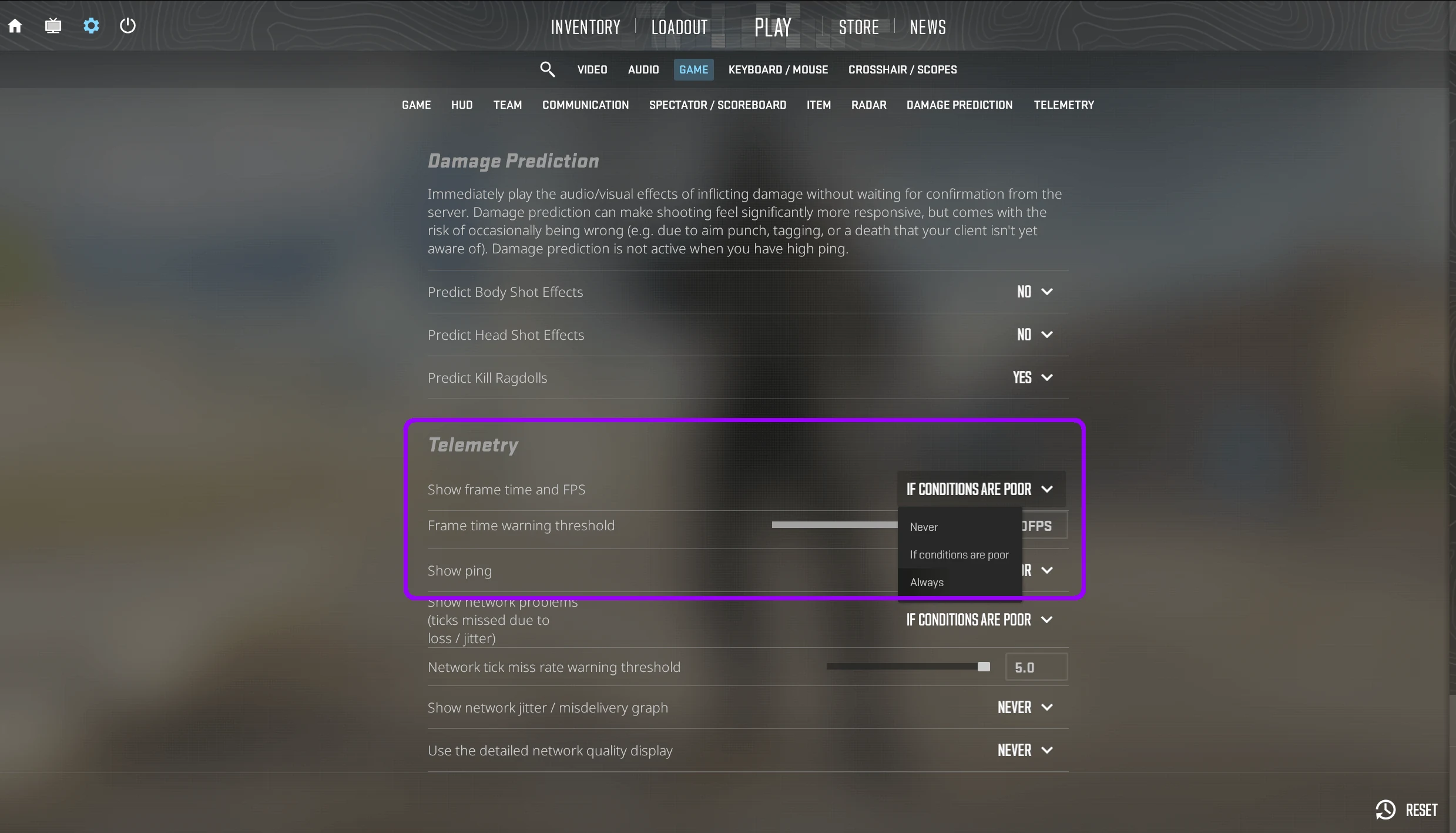
How do you show FPS in CS2? The easiest method is to open Settings - Game - Telemetry and set the frame time and FPS display to “Always”. You can also open the console and enter cl_showfps 1 if you prefer a simple counter.
CS2 offers several ways to monitor performance. You can use the built-in telemetry, a console command, Steam’s performance monitor or an overlay provided by your graphics card software.
Each solution serves a slightly different purpose. A casual player may only need the frame rate displayed in the corner of the screen. Someone investigating stuttering should also monitor frame time, ping and packet loss.
How to display FPS in CS2 using telemetry
Built-in telemetry is the most convenient option
Not everyone wants to remember commands or open the console whenever they launch the game. For most players, the telemetry panel available directly in the CS2 menu is therefore the best solution.
To enable it:
- Launch Counter-Strike 2.
- Open the settings.
- Go to the “Game” tab.
- Find the “Telemetry” section.
- Locate the setting responsible for frame time and FPS.
- Select “Always”.
Original graphic by the editorial team
When the match begins, performance information will appear on the screen. You no longer need to guess whether the game is actually running worse. Simply look at the values during a fight, while utility is being used or when several players enter the same bombsite.
You can also configure telemetry to appear only when the values exceed a selected threshold. This is useful when you do not want additional information on the screen all the time but still want to be warned about a noticeable performance drop.
What does telemetry actually show?
The most obvious value is FPS, which means the number of frames generated every second.
The more frames your computer produces, the more frequently the image is updated. Enemy movement looks smoother, turning the camera feels more natural, and changes on the screen are easier to notice.
However, the average frame rate does not tell the whole story.
You may have 250 FPS and still experience short stutters. This can happen when individual frames take much longer to generate than the others. The average number still looks good, but the game briefly freezes at the exact moment you peek an opponent.
That is why telemetry that also displays frame time is more useful than a simple FPS counter.
A high frame rate looks good on paper, but stability matters more during a real match.
According to our expert’s experience, many players focus only on the highest number visible in the corner of the screen. In reality, brief frame-time spikes are often the main cause of stuttering, even when the average FPS looks impressive.
How to show FPS in CS2 with a command
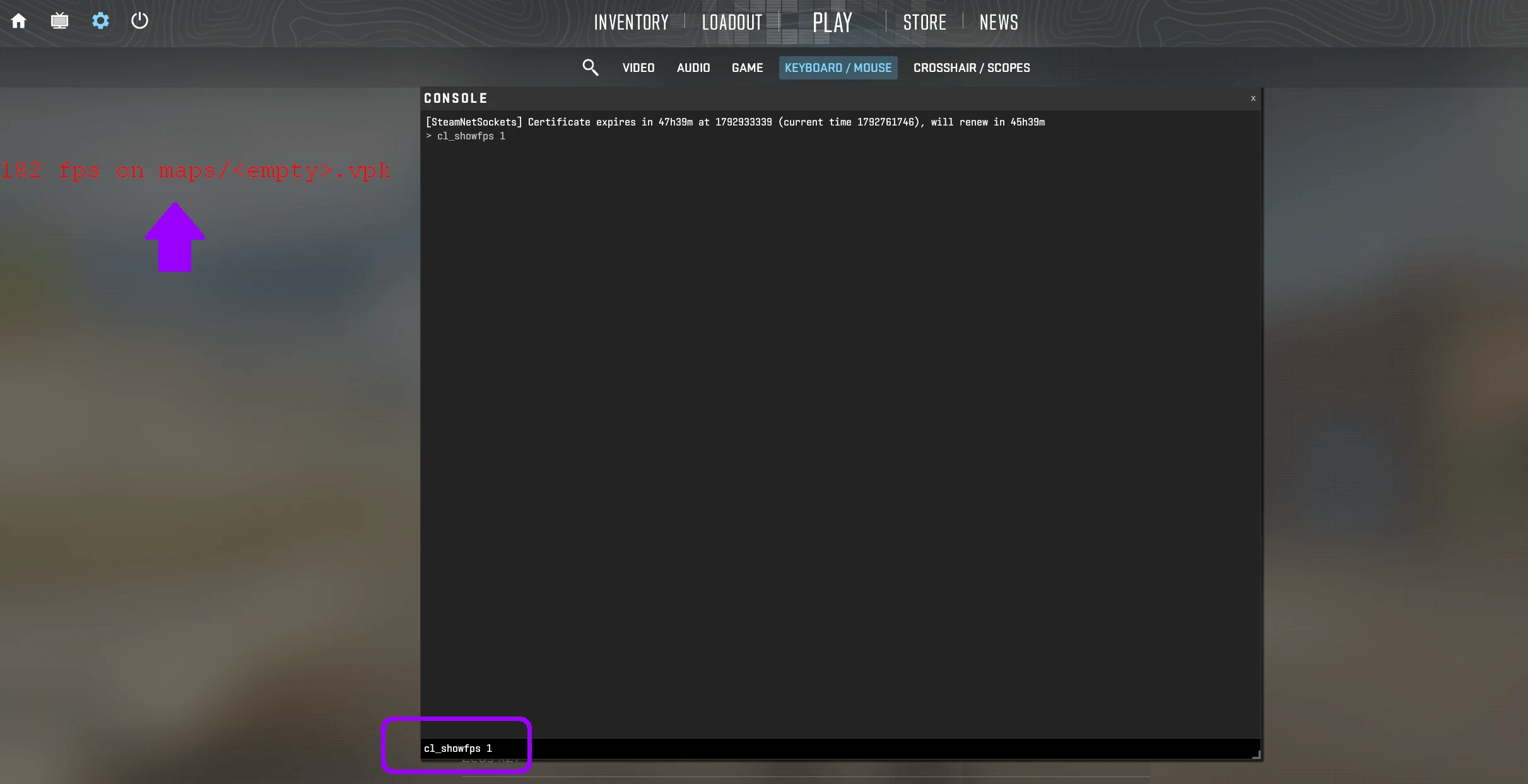
The most important command is cl_showfps 1
If you need a simple and compact counter, using the console may be faster than searching through several settings tabs.
The command that displays FPS in CS2 is:
cl_showfps 1
After entering it and pressing Enter, the frame rate will appear on the screen.
To disable it, enter:
cl_showfps 0
This solution is simple, readable and does not take up much HUD space. It works well when quickly comparing graphics settings or checking whether a driver update has improved performance.
Original graphic by the editorial team
How to enable the console in CS2
If you press the tilde key and nothing happens, the console is probably still disabled.
- Open the CS2 settings.
- Go to the “Game” tab.
- Find the “Enable Developer Console” option.
- Change its value to “Yes”.
- Close the settings.
- Press the key usually located below Esc.
- Enter cl_showfps 1.
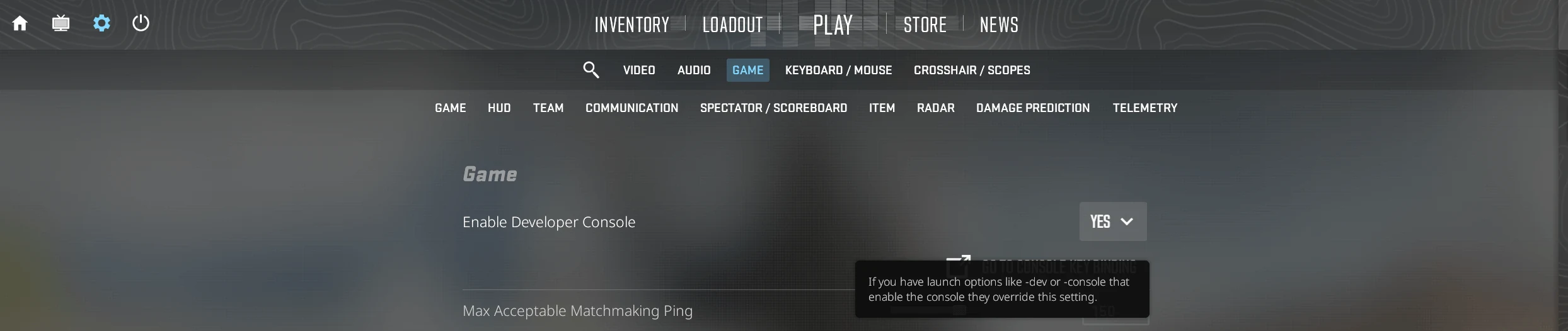
Original graphic by the editorial team
The key that opens the console may differ depending on your keyboard language and layout. When the standard key does not work, assign the console to another button in the control settings.
Are there other versions of the cl_showfps command?
You can also test:
cl_showfps 2
This variant may present a smoother reading, so the displayed number does not change as rapidly from one second to another.
For everyday play, cl_showfps 1 is usually enough. It shows the current situation and reacts quickly to sudden drops. A smoothed reading may be more comfortable when calmly comparing different settings.
Do not enable several counters at the same time. CS2 telemetry, Steam’s monitor and the console command may overlap and cover part of the screen.
One well-selected counter is more useful than three sets of numbers that you do not have time to read during a round.
How to show FPS through Steam
Steam has its own performance monitor
Displaying FPS in CS2 does not have to be configured inside the game. Steam has its own performance monitor that can also work in other titles.
To enable it:
- Open Steam.
- Click “Steam” in the upper-left corner.
- Select “Settings”.
- Go to the “In Game” tab.
- Find the performance monitor options.
- Enable the monitor.
- Select the level of detail you need.
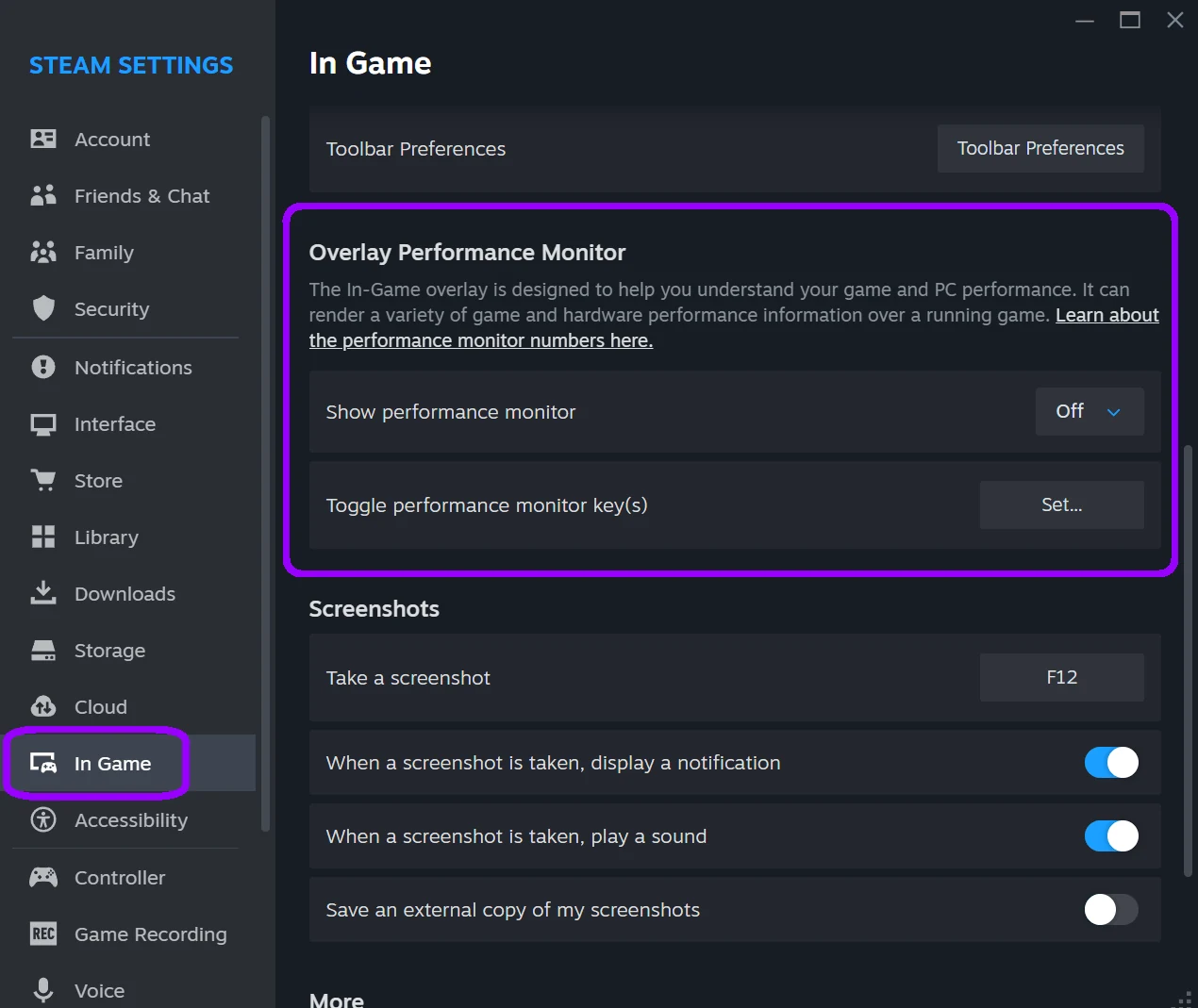
Original graphic by the editorial team
At the basic level, you will see a simple FPS counter. A more detailed view may also show CPU, GPU and memory usage.
This information is useful when you want to find out why the frame rate is low.
When the graphics card constantly operates at very high usage, the resolution or graphics settings may be the main limitation. When the processor cannot keep up, reducing some visual details further may not provide the expected improvement.
What should you do if Steam’s counter does not appear?
First, check whether the Steam Overlay is enabled.
When it is disabled, the performance monitor may not appear. After enabling the overlay, restart Steam and CS2.
If the counter still does not work:
- Check whether the Steam client is up to date.
- Restart the application.
- Disable other on-screen overlays.
- Test a different monitor detail level.
- Restart CS2.
Conflicts may be caused by running the Steam Overlay, hardware monitoring software, graphics card software and a screen-recording feature at the same time.
Displaying FPS in CS2 and old CS:GO commands
The old net_graph is no longer the main solution
Players who remember CS:GO are probably familiar with this command:
net_graph 1
For years, it was one of the most popular diagnostic commands. It displayed FPS, ping and additional information about communication with the server.
It is therefore understandable that many players started searching for the same panel after moving to CS2.
Counter-Strike 2 runs on Source 2 and uses a new telemetry system. This means that displaying FPS in CS:GO and displaying FPS in CS2 do not work in exactly the same way.
Instead of relying on old guides, use one of the current methods:
- Enable telemetry in the CS2 settings.
- Use the cl_showfps 1 command.
- Enable Steam’s performance monitor.
Telemetry replaces many of the functions for which players previously used net_graph. It allows you to monitor FPS, frame time and basic network information without relying on the old panel.
Why may CS:GO guides no longer work?
You can still find many articles online about “the command that displays FPS in CS:GO”.
Some of the solutions described in them were correct several years ago, but stopped working or no longer display the same information after the move to Source 2.
Before copying a command from an old video or forum post, check the publication date. If the material was created before the release of CS2, it probably refers to the previous version of the game.
The safest current options are built-in telemetry and cl_showfps 1.
Why does a visible FPS counter matter?
It helps you distinguish a hardware issue from an internet problem
Did an opponent suddenly move several metres? Was your shot registered later than expected? Did the game stutter while you were peeking?
These symptoms may look similar, but they do not always have the same cause.
Low FPS and frame-time spikes usually indicate a problem with generating the image. The graphics card, processor, memory, high temperatures or a background application may be responsible.
High ping, jitter and packet loss are network-related issues.
Enabling telemetry lets you quickly determine which direction your troubleshooting should take. This prevents you from changing graphics settings when Wi-Fi is the real problem or restarting the router when your computer is overheating.
Stable FPS matters more than a record on an empty map
It is easy to launch an empty map, look at a counter showing 400 FPS and assume that the computer works perfectly.
The real test begins during a match.
Smokes, incendiary grenades, several player models, shadows and additional effects appear on the screen. The processor must handle the server situation at the same time, while the graphics card generates a more complex image.
This is when the frame rate may drop the most.
Test performance:
- During a normal five-versus-five match.
- Near smokes and fire effects.
- While turning the camera quickly.
- On several different maps.
- After a longer session, when the computer has had time to heat up.
A result achieved for a few seconds on an empty map matters less than a stable frame rate during a crucial round.
The counter helps you evaluate the effect of changes
Without displaying FPS, you may feel that the game works better after changing a setting. Sometimes the difference is minimal and comes more from your expectations than from a real performance increase.
The counter lets you compare the result before and after each change.
It is best to modify one setting at a time. Change an option, enter a similar area of the same map and check the result. This makes it easier to determine which settings genuinely affect your computer’s performance.
How much FPS should you have in CS2?
It depends on your monitor and performance stability
There is no single value that is perfect for every player.
Someone using a 60 Hz monitor has different expectations from a player using a 144, 240 or 360 Hz screen. The higher the refresh rate, the more new frames the monitor can display each second.
In practice, you should aim for a result that remains stable and does not drop sharply during fights.
If you use a 144 Hz monitor, it is helpful when your computer can maintain a frame rate above that value even during more demanding moments. Expectations will be higher with a 240 Hz display.
This does not mean that dropping below the monitor’s refresh rate automatically makes the game unplayable. Sudden changes, such as a drop from 250 to 90 FPS, are usually more distracting than a lower but stable result maintained throughout the match.
Remember that a high FPS does not fix ping issues and does not replace skill. It does, however, provide a smoother image and makes changes on the screen easier to notice.
How to increase FPS in CS2
Start with a few simple changes
If the counter shows too few frames, you do not have to buy a new computer immediately.
Start with a few simple steps:
- Lower the resolution or rendering resolution.
- Reduce the most demanding graphics settings.
- Lower anti-aliasing and effect quality.
- Close the browser and unnecessary background applications.
- Update the graphics card driver.
- Check whether your laptop is using the dedicated GPU.
- Monitor CPU and graphics card temperatures.
- Verify the game files through Steam.
- Set the highest refresh rate supported by your monitor.
- Test every change under similar conditions.
Do not change every setting at once. If you immediately reduce everything to the minimum, you will not know which option actually helped.
Changing one setting and checking the result takes slightly longer, but it helps you find the best balance between visibility, image quality and performance.
Do not blindly copy a professional player’s entire configuration
A tournament player’s settings may be a useful starting point, but they are not a universal solution.
A professional may use a powerful processor, a 360 Hz monitor and a resolution selected because of years of habit. The same configuration may perform worse on your computer or simply feel uncomfortable.
Copy selected settings, enable the FPS counter and test them yourself.
The best configuration is not necessarily the one used by the most famous player. It is the one that provides a stable image and comfortable gameplay on your own hardware.
How to show FPS in CS2? Final answer
The easiest method is to open Settings - Game - Telemetry and set the frame time and FPS display to “Always”.
If you need a simple counter, open the console and enter:
cl_showfps 1
To disable the FPS display in CS2, use:
cl_showfps 0
You can also use Steam’s performance monitor. It is a good option when you want to observe not only the frame rate but also CPU, GPU and memory usage.
CS2 telemetry provides the most useful practical information because it allows you to monitor FPS, frame time and network issues at the same time.
Do not focus only on the highest number displayed in the corner.
In competitive play, stable FPS and consistent frame time matter more than a very high result achieved for only a few seconds.
FAQ
How do you show FPS in CS2?
Open Settings - Game - Telemetry and set the frame time and FPS display to “Always”.
What command shows FPS in CS2?
The basic command that displays FPS in CS2 is cl_showfps 1.
How do you disable the FPS counter in CS2?
Open the console and enter cl_showfps 0, or disable the data in the telemetry settings.
How do you display FPS in CS2 without the console?
Use telemetry in the game settings or Steam’s performance monitor.
Does cl_showfps work in CS2?
Yes. The command works in Counter-Strike 2 and displays the frame rate on the screen.
Does net_graph 1 work in the same way as in CS:GO?
No. CS2 uses the new Source 2 telemetry system, so solutions known from CS:GO do not always work in the same way.
Does FPS affect aiming?
A smoother and more stable image makes it easier to track opponents and react quickly, but high FPS cannot replace practice.
Why do I have high FPS but the game still stutters?
The cause may be unstable frame time, overheating components, a background application or an internet connection problem.
How can I increase FPS in CS2?
Lower selected graphics settings, close unnecessary applications, update your drivers and check the computer’s temperatures.
Does an FPS counter reduce performance?
A simple counter usually has a negligible effect on performance. Detailed overlays may use more resources, so you should not run several at the same time.